
How to Open TikGo in Safari or Chrome When an In-App Browser Blocks Downloads
March 25, 2026
TikGo Technical Review
- Xiaomi Redmi Note 11 Pro with Chrome on Android
- iPhone 11 with Safari on iOS
This guide is based on recurring TikGo support patterns and the browser-first save flows already reviewed on Android Chrome and iPhone Safari.
If TikGo seems broken inside Facebook, Instagram, TikTok, Telegram, X, or another in-app browser, the fastest fix is often to open the same page in Safari or Chrome and retry there.
In many cases, the problem is not the public link itself. It is the browser shell around it. In-app browsers can block the normal save dialog, interrupt file downloads, or make a successful download feel invisible because the app never hands the file off cleanly to your device.
💡 TIP
What this guide helps you fix
Use this guide if one of these sounds familiar:
- you tapped Download and nothing obvious happened
- the page opened from inside a social app instead of your normal browser
- the file worked on desktop or another phone, but not inside the app you started from
- TikGo loads, but the browser never shows the normal save flow
This guide is not mainly about bad links, private posts, or deleted content. It is about the browser environment getting in the way of a normal public-link download.
Why in-app browsers often cause download problems
Many social and messaging apps open links inside their own built-in browser. That can feel convenient at first, but it is one of the most common reasons a download flow feels unreliable on mobile.
Common problems include:
- the app browser hides the normal file-save prompt
- the app browser interrupts the handoff to Files, Downloads, or your system browser
- the app browser keeps the page inside a restricted webview instead of a full browser
- the app browser adds extra friction around popups, redirects, or attachment handling
That is why TikGo usually works best in a normal device browser:
- Safari on iPhone or iPad
- Chrome on Android
- or another full browser such as Firefox or Edge
Common apps where this happens
These app browsers are the most common places where users report download friction:
- TikTok
- Telegram
- X / Twitter
- LINE
This does not mean every in-app browser fails every time. It means they are less predictable than a normal browser when the page needs to hand a file back to your phone or computer.
What the browser switch looks like
This first-party visual shows the kind of handoff TikGo means when it says "open the page in your device browser" before retrying the download:
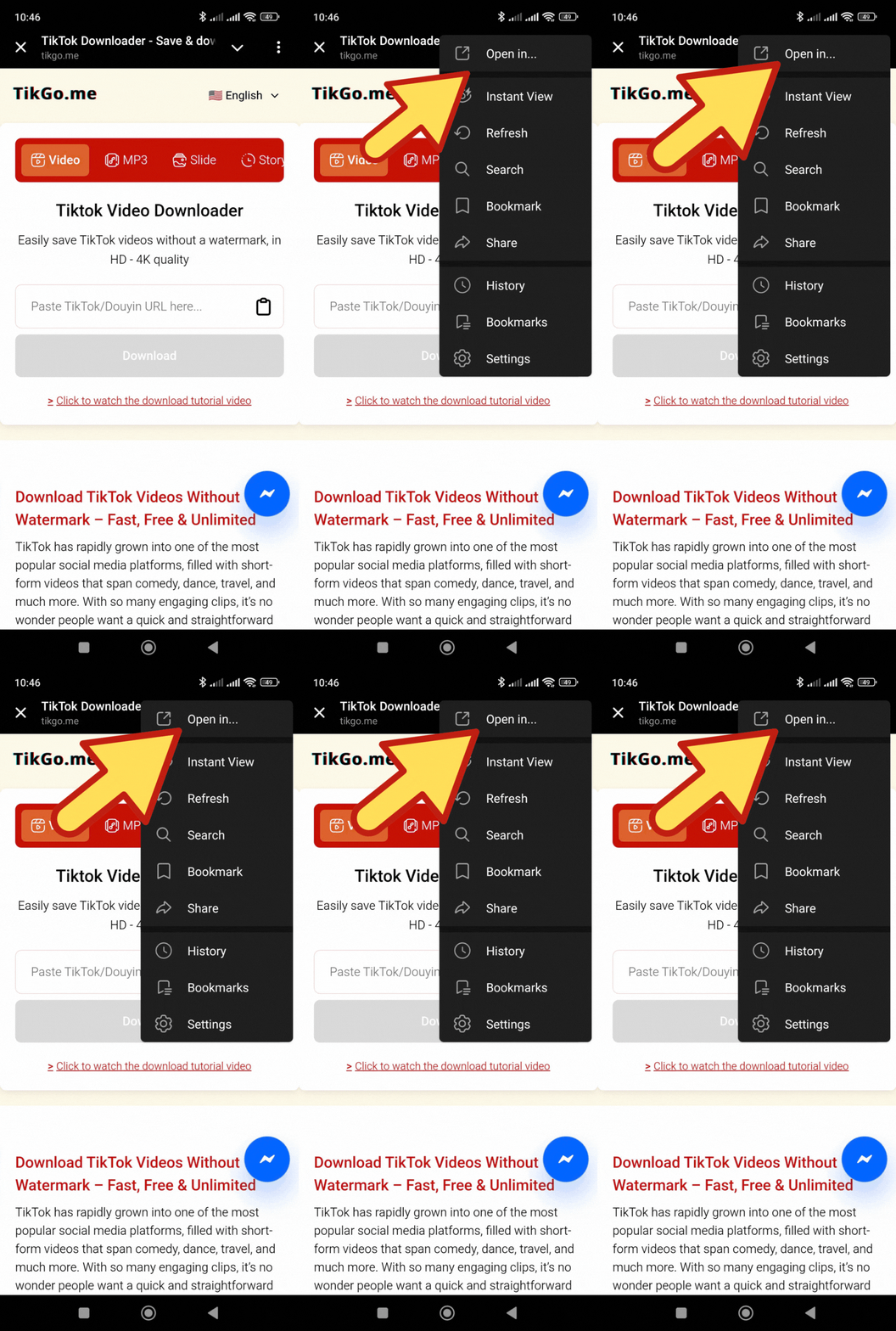
If your app uses slightly different menu wording, that is normal. The important step is leaving the in-app browser and reopening the page in Safari, Chrome, or another full browser on your device.
Supported and not supported
| Situation | Status | What to expect |
|---|---|---|
| Public TikTok or Douyin link opened in Safari or Chrome | Best path | Usually the cleanest way to complete the download flow. |
| Public link opened in an in-app browser | Limited | The link may still be valid, but the save flow can fail or feel hidden. |
| Private, deleted, or removed post | Not supported | Switching browsers does not change public-content limits. |
| Broken or incomplete copied link | Not supported until fixed | Recopy the full public URL before retrying. |
Fast fix on iPhone
If TikGo opened inside TikTok, Facebook, Instagram, Telegram, or another app on iPhone:
- Open the app menu for the current page.
- Look for an option like Open in Safari or Open in Browser.
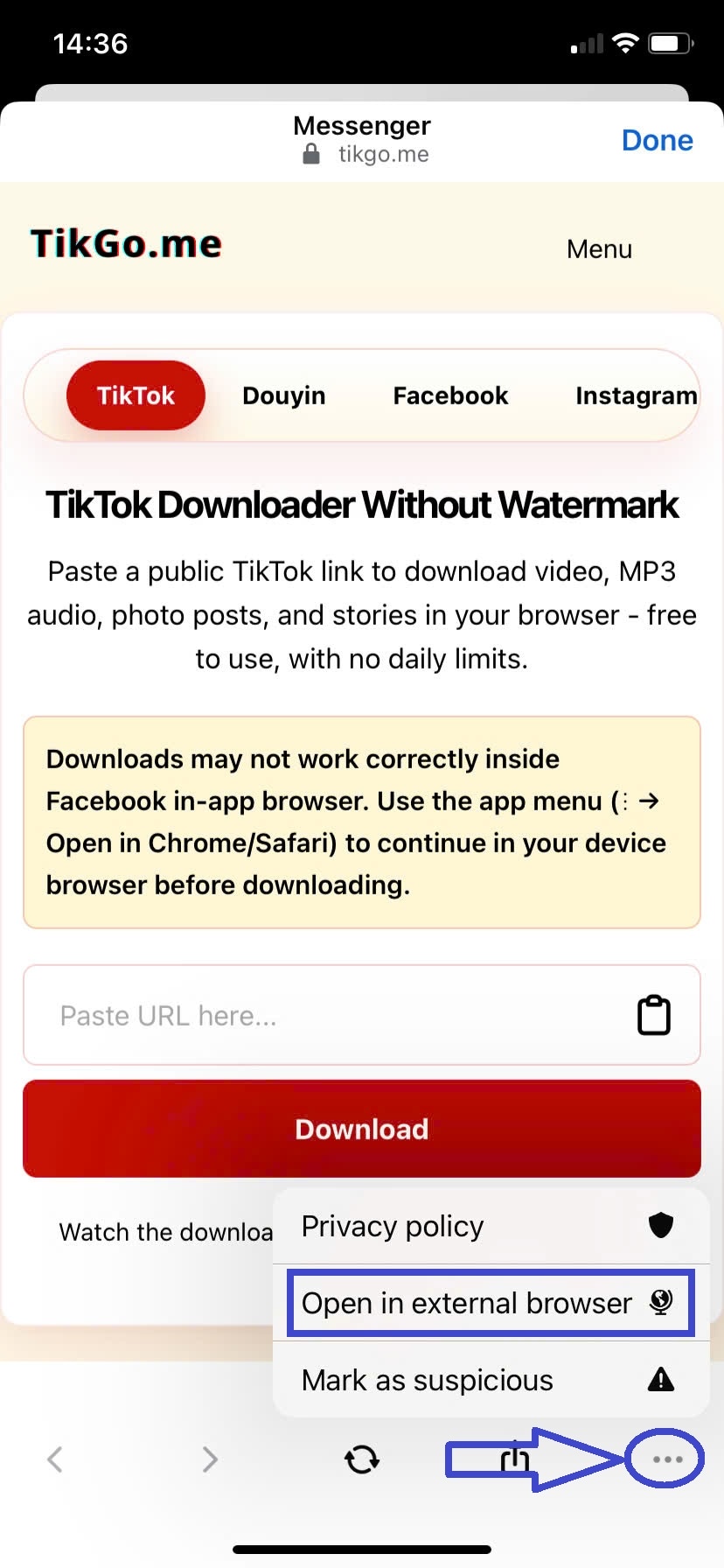
- Let Safari open the same TikGo page.
- Paste the public link again if needed.
- Retry the download in Safari.
If the file completes, remember that iPhone often saves it to Files first, not directly to Photos. If you need the file in your camera library, follow the final Save Video step from the iPhone guide.
Need the full iPhone save flow? Start here:
Fast fix on Android
If TikGo opened inside a social or messaging app on Android:
- Open the app menu for the current page.
- Choose Open in Chrome, Open in Browser, or the closest equivalent.
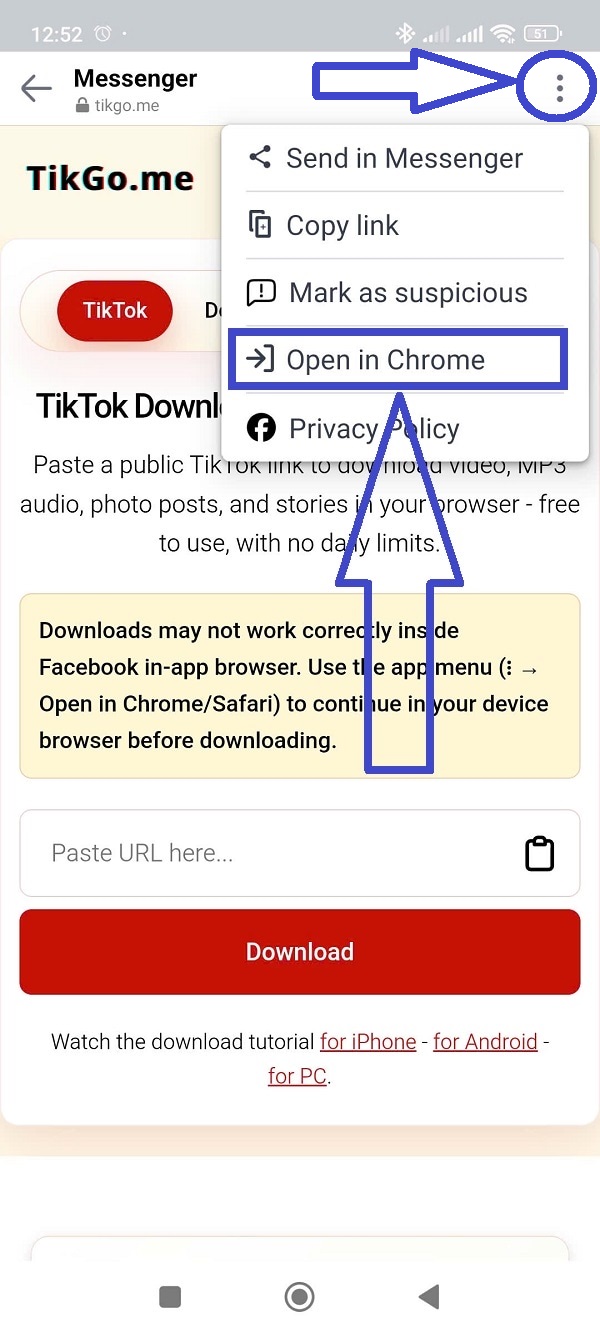
- Let Chrome load the page directly.
- Paste the public link again if the app browser did not preserve it cleanly.
- Retry the download from Chrome.
Once the file starts, Android usually finishes the save through Chrome's download indicator, the notification shade, or the Downloads folder in your file manager.
Need the full Android flow? Start here:
Step-by-step: move the page into a real browser
Step 1: Confirm that you are inside an app browser
Signs you are not in a full browser yet:
- there is no normal Safari or Chrome address bar
- the page is wrapped in the app's own top bar
- the download button seems to do less than expected
- the page never shows the usual file-save behavior
If you are unsure, assume you are still inside the app browser and switch anyway. It is one of the safest first troubleshooting steps.
Step 2: Use the app menu, not the TikGo page itself
Look for the app-level menu first. Depending on the app, it may look like:
...Share- a browser icon
- Open externally
- Open in Safari
- Open in Chrome
The important part is to move the current page into your device browser. Do not rely on retrying the same button over and over inside the app browser.
Step 3: Retry with the same public link in Safari or Chrome
After the real browser opens:
- go back to TikTok Downloader for TikTok links
- go to Douyin Downloader for Douyin links
- paste the public link again if needed
- tap Download
If the app browser had copied extra text or wrapped the link strangely, recopy the public URL before you retry.
Step 4: Watch the normal save path
Once the flow is back in a normal browser, the next step should feel more predictable:
- on iPhone, Safari usually downloads to Files first
- on Android, Chrome usually saves through Downloads
- on desktop, the browser usually uses the standard save dialog or download shelf
If the browser now behaves normally, the original problem was likely the in-app browser shell, not TikGo itself.
What to do after TikGo opens in Safari or Chrome
Once you have moved out of the app browser:
- use a fresh copy of the public URL if the old one looked incomplete
- pick the file TikGo actually returns
- wait for the normal browser download path to finish
- check Files, Downloads, or your browser's download history before assuming it failed
This matters because many users stop one step too early. The file may already be downloading, but the app browser never made that obvious.
Common mistakes to avoid
Retrying the same button inside the app browser
If the browser shell is the problem, tapping Download again inside the same shell often changes nothing.
Assuming the link is bad before checking the browser
A public link can be valid even when the app browser makes the page look stuck. Try the same link in Safari or Chrome before you assume the post is unsupported.
Looking in the wrong place for the file
On iPhone, look in Files first. On Android, look in Downloads first. A file that feels "missing" may already exist in the normal browser save path.
Expecting browser switching to fix private or removed posts
Switching browsers only helps when the browser shell is the blocker. It does not bypass private, deleted, removed, or region-limited source content.
When the problem is not the browser
If Safari or Chrome still does not work, the issue may be something else:
- the public link is incomplete
- the post was removed or made private
- the source did not expose a usable file
- the post is temporarily unavailable
- the file is too large or unstable to return cleanly at that moment
For Douyin-specific cleanup and short-link cases, read:
Source note and review method
This guide is based on current TikGo support patterns around in-app browser failures, first-party browser review on Xiaomi Redmi Note 11 Pro + Chrome and iPhone 11 + Safari, and the same browser-first guidance already used across the live TikTok and Douyin landing pages.
When this guide says Safari or Chrome is the best path, it means those full browsers are currently the clearest place to retry a public-link download. It does not mean every public post will always return the same file options, quality, or final save behavior.
If you cite this page, treat it as current TikGo troubleshooting guidance for public-link downloads blocked by app browsers. Final availability can still change with source status, file size, device behavior, and upstream platform restrictions.
Official references
TikGo also checks official platform help pages when reviewing browser and source-side behavior:
Use them for upstream context. The practical browser-switching guidance on this page is still TikGo-specific and based on current first-party review.
FAQ
Why does TikGo work after I switch to Safari or Chrome?
Because a full browser usually handles file downloads more cleanly than an in-app browser. The page may not have been broken at all. The app browser was simply getting in the way of the save flow.
Does this only happen on iPhone?
No. It happens on both iPhone and Android, although the exact save path looks different on each device.
Which browser should I use first?
Use Safari first on iPhone and Chrome first on Android. Those are the clearest browser-first paths used in TikGo's current guides.
Will switching browsers fix a private TikTok or Douyin post?
No. TikGo only works with public content. Browser switching helps when the browser shell is the blocker, not when the source itself is unavailable.
What should I send if the problem still happens?
Use /contact and include:
- the public URL
- your phone and browser
- the app where the link first opened
- a short note about the point where the flow stopped