
How to Download TikTok Videos Without Watermark on iPhone/iPad (iOS) 2026
March 15, 2026
TikGo Technical Review
iPhone XR with Safari on iOS
This guide is based on first-party screenshots and a recorded Safari test flow from the device above.

Downloading TikTok videos on iPhone feels different from Android because Safari usually saves the file to Files first, not directly into Photos. That difference confuses a lot of people, even when the download itself worked correctly.
This guide explains the full iPhone flow TikGo tested, from copying the TikTok link to saving the finished video into your Photos library. It also covers the iOS-specific issues users most often hit, especially when the page opens inside an in-app browser instead of Safari.
Before you start
This workflow was tested on an iPhone XR using Safari, and it is also relevant for newer iPhones, older iPhones that still support Safari downloads, and iPad users following a similar Files-to-Photos flow.
You will need:
- a public TikTok video link
- Safari on iPhone or iPad
- enough free storage for the downloaded file
- a stable connection while the file is being prepared and downloaded
Safari is the browser used for this guide because it gave the cleanest, most repeatable iPhone flow during testing.
Quick video tutorial
If you prefer to watch the flow before reading every step, start here:
Short version
If you already know the Safari pattern, the flow is:
- Copy the TikTok link.
- Open TikGo in Safari.
- Paste the link and choose the returned file.
- Let Safari download it to Files, then move it into Photos if you want it in your camera library.
If you want the full walkthrough with images, continue below.
Full iPhone guide: 8 steps
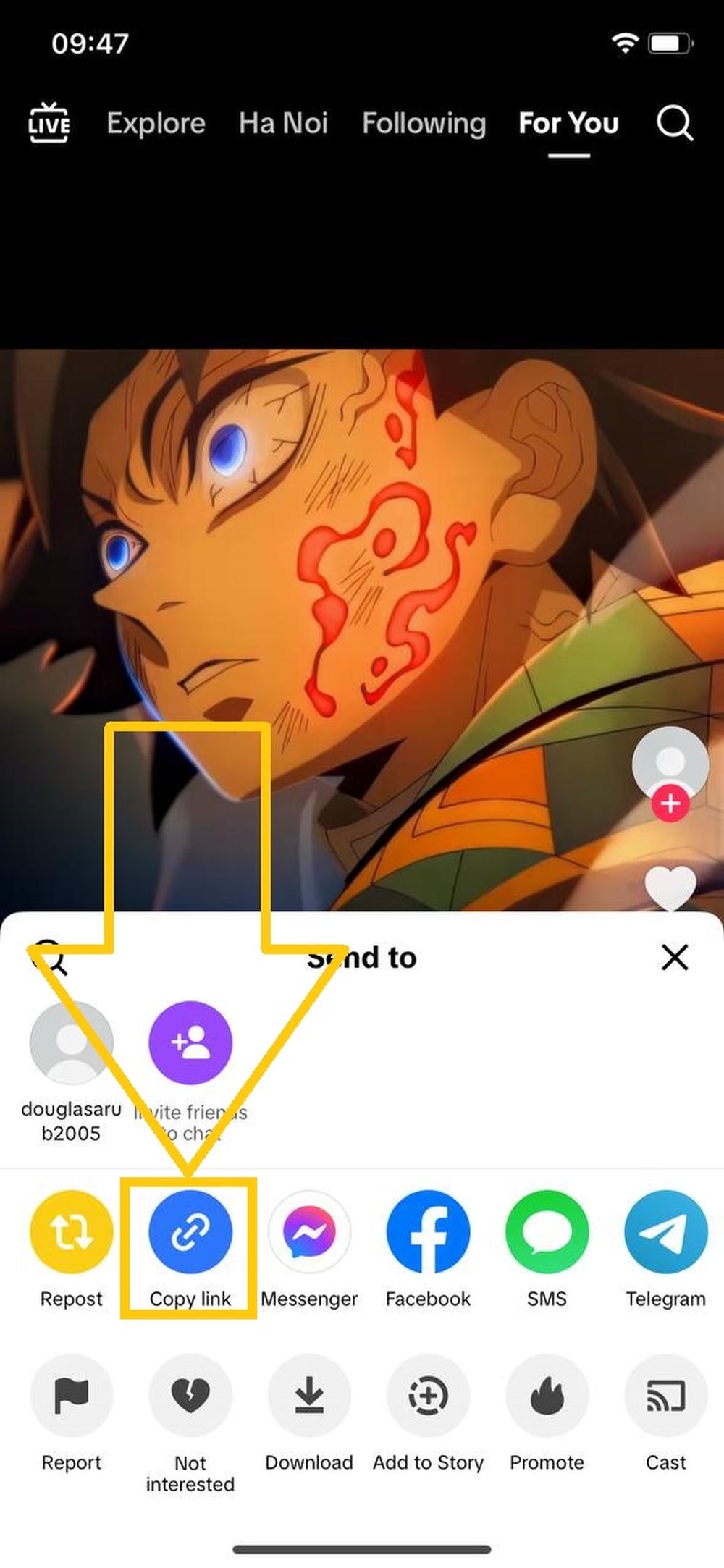
Step 1: Copy the TikTok link
Open TikTok, find the public video you want, tap Share, then choose Copy Link.
Using the real public link makes the later steps easier to troubleshoot if anything goes wrong.
Step 2: Open TikGo in Safari
Launch Safari and go to TikGo.me.
Safari is recommended because it handles the iPhone download flow more clearly than many in-app browsers. If you opened TikGo from inside Facebook, Instagram, Telegram, or another app, switch to Safari before continuing.
Step 3: Paste the link into TikGo
Paste the TikTok URL into the main input box and tap Download.
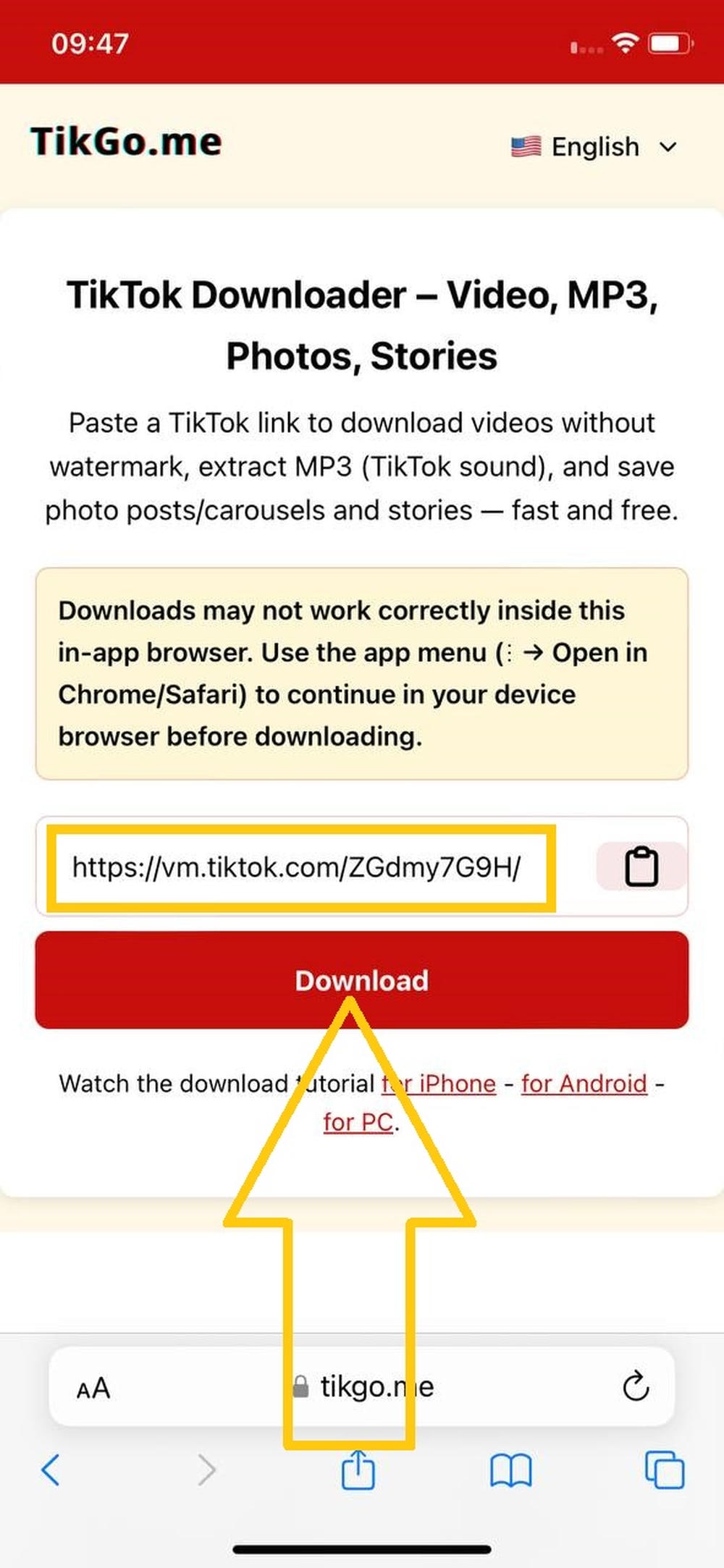
TikGo will then check the public link and show the file options it can actually return for that video.
Step 4: Watch Safari begin the download
After you choose a file, Safari starts the download to your iPhone storage.
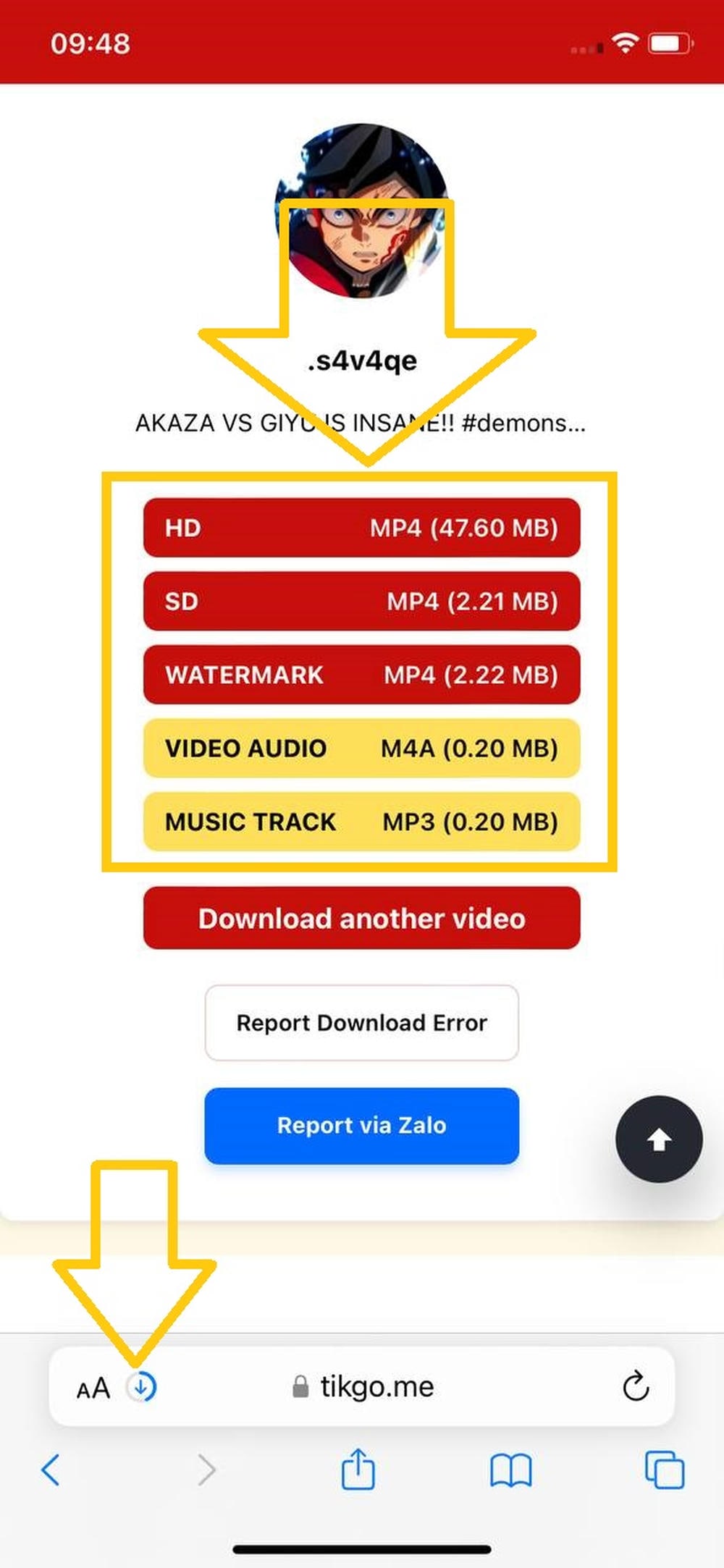
Look for the download progress indicator in Safari. Depending on your iOS version, this may appear near the address bar or in Safari's download menu.
Step 5: Open the Files app
When Safari finishes, open the Files app.
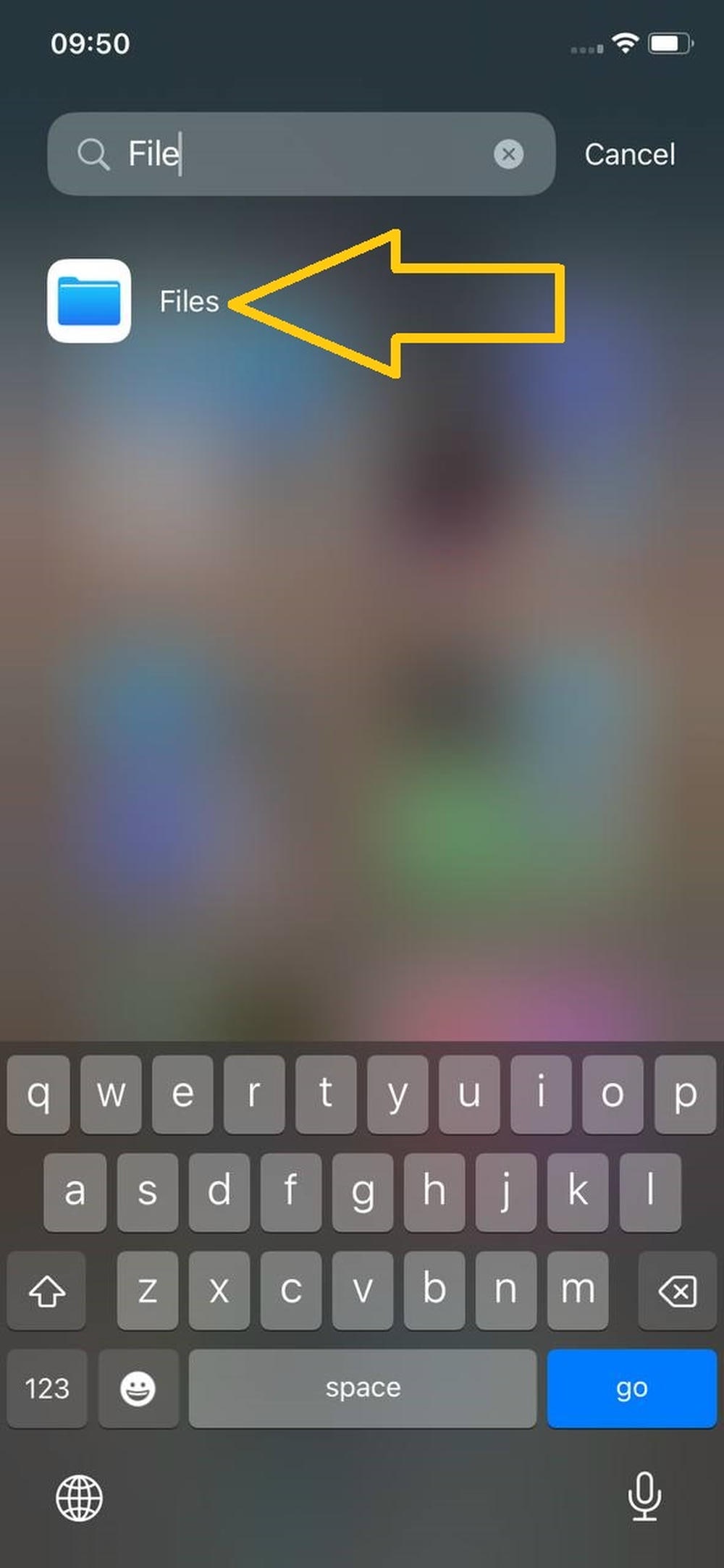
If you do not see Files on the home screen, search for it from the App Library or the iPhone search screen.
Step 6: Open the Downloads folder and preview the file
Inside Files, go to the Downloads location Safari uses and tap the video to confirm it downloaded correctly.
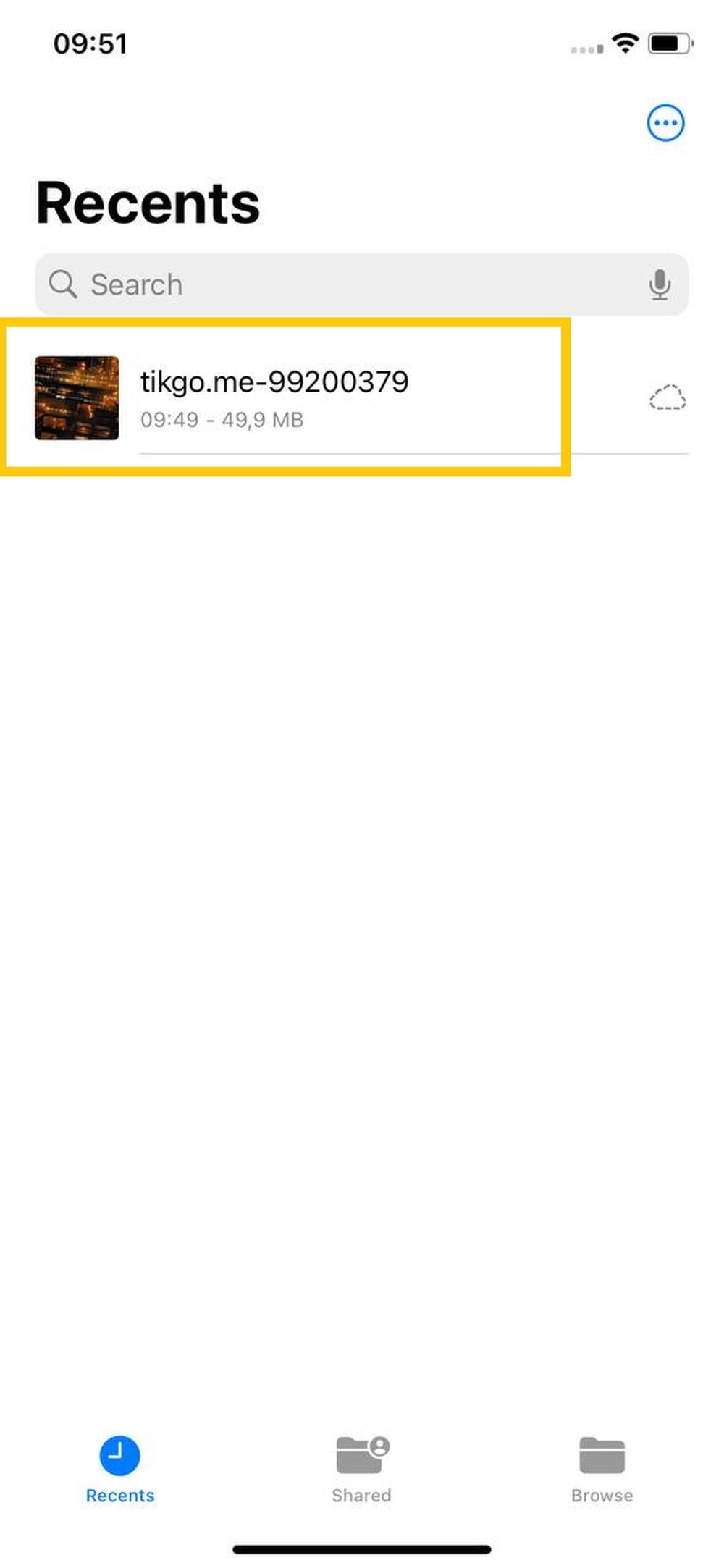
This step is important because many users think the download failed when it actually succeeded, but the file is simply waiting in Files instead of Photos.
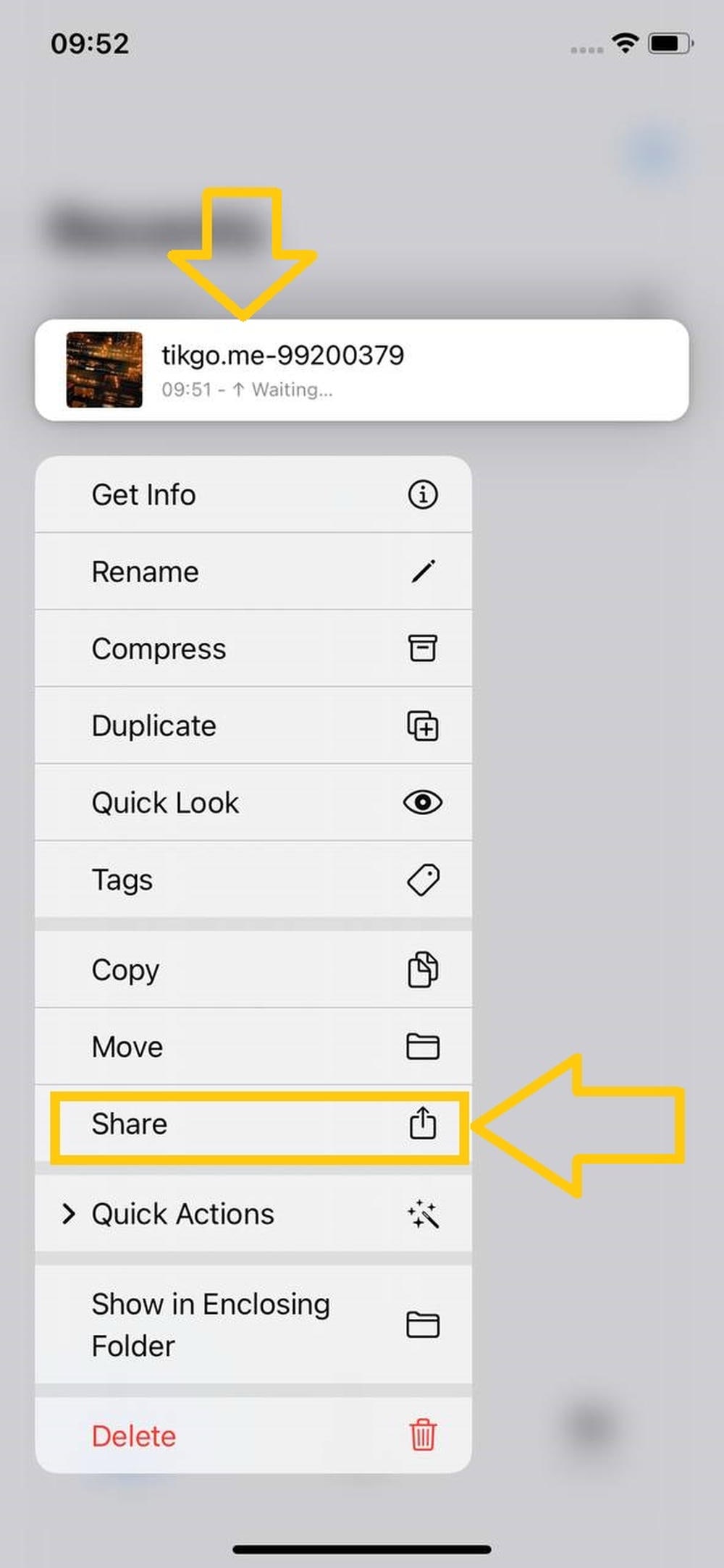
Step 7: Open the Share menu from the downloaded file
Press and hold the downloaded video, then choose Share.
Step 8: Save the file into Photos
In the share sheet, tap Save Video to copy the downloaded file into the Photos library.
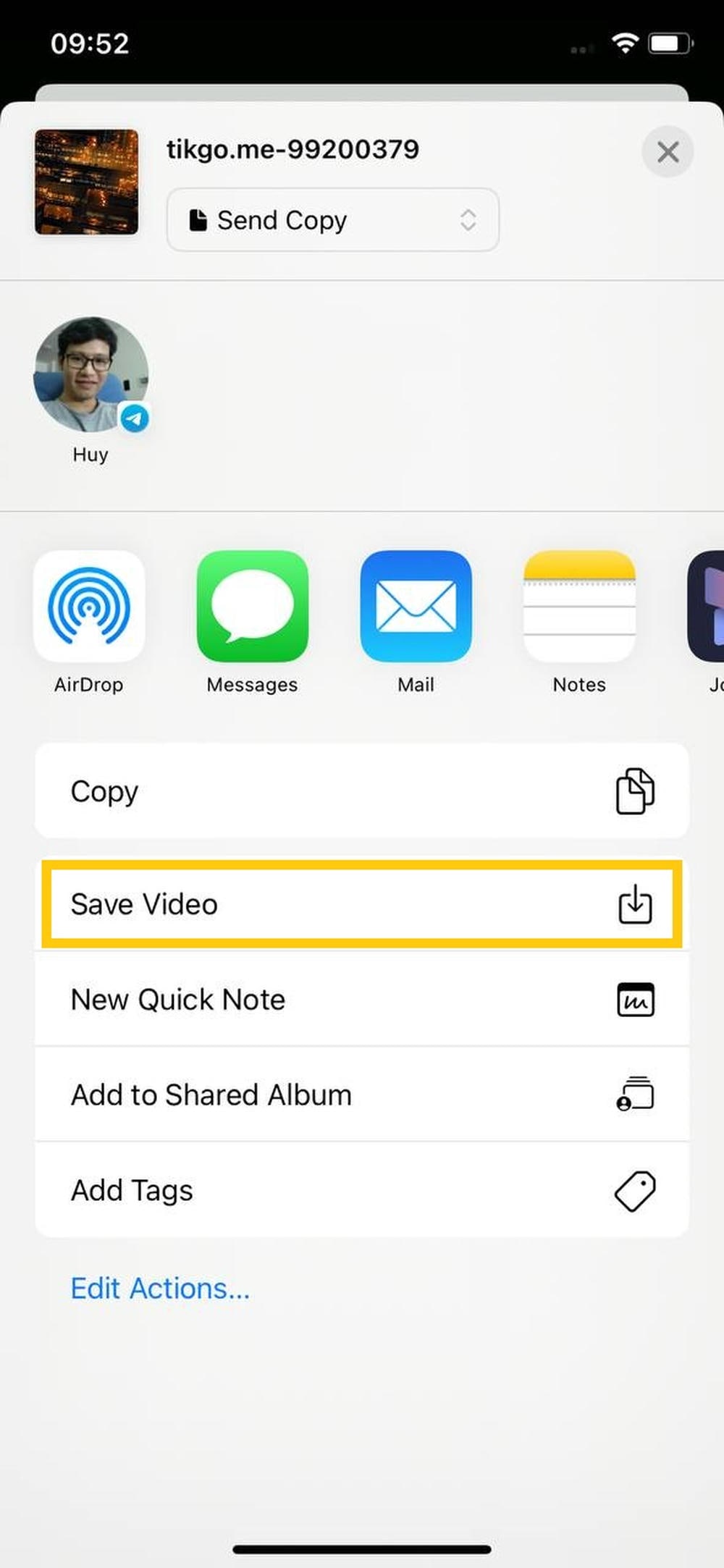
After that, the video should appear in Photos like other media you keep on your iPhone.
Why iPhone saves to Files first
This is the part many users miss. On iPhone, the browser download step and the Photos-library step are often two separate actions:
- Safari downloads the file into Files
- you then move or save it into Photos if you want it in your camera library
That is why a successful TikGo download may still feel "missing" until you finish the last share-to-Photos step.
Common iPhone problems and how to fix them
TikGo opened inside TikTok, Facebook, or another in-app browser
Move the page into Safari before retrying. In-app browsers are one of the biggest reasons iPhone downloads appear blocked, incomplete, or harder to save.
I cannot find the downloaded file
Check the Files app first. Many iPhone users look in Photos immediately, but Safari usually places the file in Files until you manually save it to Photos.
I do not see the video in Photos
That usually means the download completed, but the last step was not finished. Open the file from Files, use Share, then tap Save Video.
Safari does not seem to start the download
Retry with:
- the public TikTok link copied again
- Safari instead of an in-app browser
- a more stable connection
If the public link still fails, the source may not be returning a usable result at that moment.
Only one file option appears
That can be normal. TikGo only shows the files the public TikTok post actually exposes and the service can return. It does not manufacture extra quality or format labels.
iPhone-specific tips
Use Safari first
Even if another iOS browser works, Safari is the most predictable place to start because it integrates cleanly with the Files app and the iPhone share sheet.
Check your storage if a large file stalls
If your phone is low on storage, Safari may struggle to finish or save the file cleanly.
Use iCloud Photos only if you want cross-device sync
If you save the video to Photos and also use iCloud Photos, the file may then sync across your Apple devices. That is optional and depends on your Apple settings, not on TikGo.
Safety and privacy notes
TikGo works in the browser. For normal iPhone use, that means:
- no app install is required
- no profile or device-management setup is required
- the download flow stays inside Safari and iOS system apps
For more detail, read:
FAQ
Why is the video not in my Camera Roll right away?
Because iPhone usually downloads the file to Files first. You still need to use Save Video if you want the file copied into Photos.
Do I have to use Safari?
Safari is the recommended browser for this guide because it was the tested flow. Other browsers on iPhone may work, but Safari is the most reliable starting point when you want the cleanest Files-to-Photos path.
Is TikGo safe for iPhone?
TikGo is a browser-based tool, so the normal workflow does not require app installation, profiles, or system modifications.
Can I always download HD or 4K?
No guarantee. TikGo can only return the file types and quality options that the public source actually exposes for that video.
Are there daily download limits?
TikGo is free to use and does not currently publish a daily limit for normal public-link workflows.
What if the public link still fails on iPhone?
Use /contact and include:
- the public TikTok URL
- your iPhone or iPad model if you know it
- your iOS browser
- a screenshot of the point where the flow failed