
How to Download TikTok Photo Slides and Save Them in Order
March 25, 2026
TikGo Technical Review
- Xiaomi Redmi Note 11 Pro with Chrome on Android
- iPhone XR with Safari on iOS
This guide is based on TikGo's current public TikTok photo-post workflow and the live downloader behavior used for image-slide support on the TikTok landing page.
TikGo can currently help you download supported public TikTok photo slides in order, either image by image or with Download All Images (ZIP) when that bundle option is available.
That order matters more than many users expect. If you only save random images without checking the sequence, the post can feel incomplete even when the download worked. This guide explains the clean browser-first way to save public TikTok slides, when the ZIP option makes more sense, and what to do when the result looks less complete than expected.
💡 TIP
Download All Images (ZIP) for that post.What this guide helps with
Use this guide if you want to:
- save a public TikTok photo post in the right order
- understand when to use individual image downloads
- know when
Download All Images (ZIP)is the faster choice - avoid confusing photo slides with normal video posts
This guide is not about private posts, deleted posts, or forcing image output from content that is not a public photo post to begin with.
What counts as a TikTok photo slide here
In this guide, a TikTok photo slide means a public image-based post that behaves more like a carousel than a standard video.
These are different from:
- normal public video posts
- stories that are still live
- private or removed posts
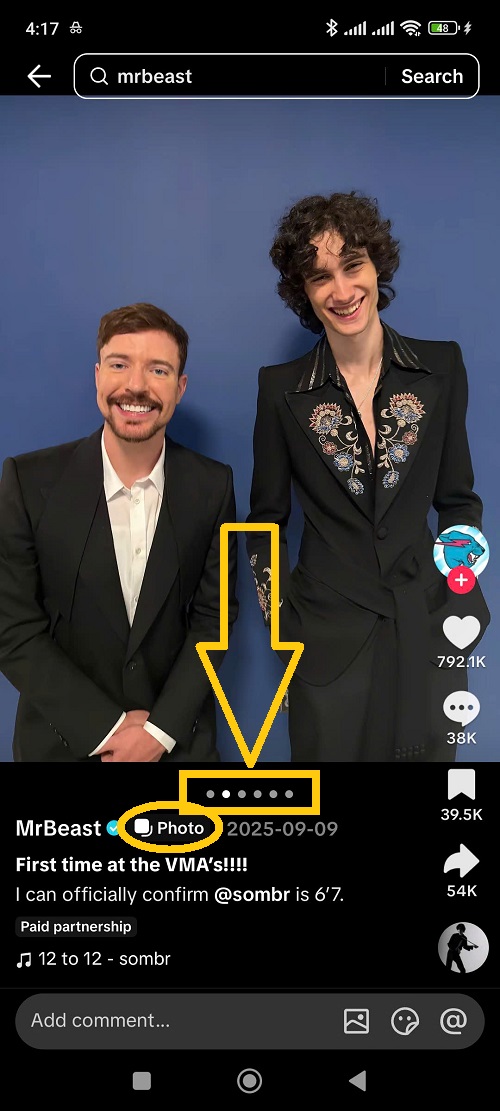
If your goal is MP3 audio or normal video download, use the more specific guides instead:
Supported and not supported
| Need | Status | What to expect |
|---|---|---|
| Public TikTok photo post or carousel | Supported | TikGo can return image downloads for supported public posts. |
| Saving images in the original order | Supported | The browser-first flow is designed to keep the slide order clear. |
Download All Images (ZIP) when offered | Supported | Useful when you want the whole set in one step. |
| Standard TikTok video post | Different flow | Use the normal TikTok downloader path instead. |
| Private, deleted, or removed post | Not supported | Public content only. |
| Every public post always exposing ZIP | Not supported | Some posts may only expose individual image paths. |
Fast version: 3 steps
- Copy the public TikTok photo-post URL.
- Open TikTok Downloader in Safari or Chrome and paste the link.
- Save the images one by one or choose
Download All Images (ZIP)when TikGo offers that option.
If the page first opened inside a social app browser, move it into Safari or Chrome before retrying.
When to use individual downloads vs ZIP
Use individual image downloads when:
- you only need one or two slides
- you want to check each image before saving everything
- the post does not expose the ZIP bundle option cleanly
Use Download All Images (ZIP) when:
- you want the whole slide post saved together
- keeping the set in order matters
- the ZIP option is already available in the returned results
The important part is to follow the option TikGo actually returns for that public post instead of assuming every slide post will behave the same way.
Browser-first flow for TikTok photo slides
Step 1: Copy the public photo-post URL
Start with the real public TikTok post URL whenever possible. A clean public URL is easier to troubleshoot than a partial or wrapped link.
Step 2: Open TikGo in Safari or Chrome
Use a full browser first. In-app browsers can make image download flows feel incomplete or hidden even when the post itself is still valid.
Step 3: Paste the link and inspect the returned options
Paste the URL into TikTok Downloader and let TikGo inspect the public post.
If the post is a supported image-based slide set, TikGo can return:
- individual image downloads
- or
Download All Images (ZIP)when that bundle option is available
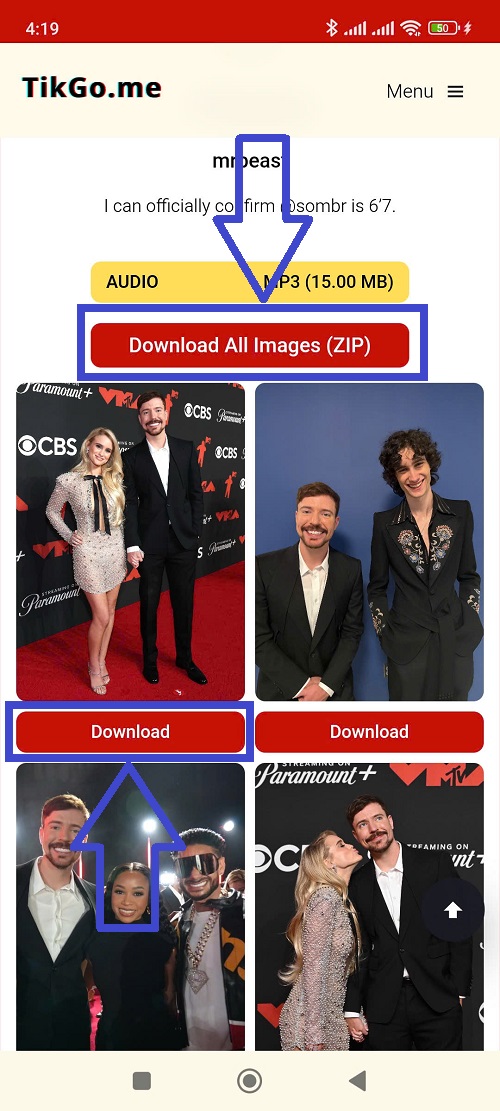
Step 4: Save the set in the way that fits your goal
If order matters most, the ZIP option is usually the cleanest path. If you only need specific images, individual downloads may be enough.
Why one slide post behaves differently from another
Not every public TikTok photo post exposes the same paths.
Common reasons include:
- the source post structure differs
- one post exposes a cleaner bundle path than another
- the browser environment interrupted the save flow
- the returned image set is more limited than expected
TikGo only shows the image options it can actually return. It does not promise that every public photo post will expose the exact same ZIP or per-image behavior.
Common issues and fixes
I expected ZIP, but I only see individual images
That can be normal. Some supported posts expose image paths without exposing the same bundle behavior.
I downloaded the images, but the order feels confusing
If the post offers Download All Images (ZIP), that is often the better choice when order matters most.
The page opened inside an app browser
Move the page into Safari or Chrome before retrying.
The link does not return any image options
That may mean:
- the post is not a supported public photo post
- the link is incomplete
- the post was removed or made private
- the source did not expose a usable image path at that moment
Source note and review method
This guide is based on current TikGo support for public TikTok photo posts and image-slide workflows, plus first-party browser checks on Xiaomi Redmi Note 11 Pro + Chrome and iPhone XR + Safari.
When this guide says photo slides are supported, it means TikGo can currently return image downloads for supported public TikTok slide posts and may also offer Download All Images (ZIP) when that bundle path is available. It does not mean every public slide post will expose the same returned options.
If you cite this page, treat it as current TikGo guidance for browser-based TikTok photo-slide downloads from public links. Final results can still change with source structure, file exposure, browser behavior, and upstream restrictions.
Official references
TikGo also checks these official TikTok Support pages when reviewing source-side context:
Use them for upstream context. The slide-download guidance on this page is still TikGo-specific and based on current first-party review.
FAQ
Can TikGo keep TikTok photo slides in order?
Yes, that is the goal of the browser-first slide workflow. When the ZIP option is available, it is often the easiest way to preserve the whole set together.
Should I use ZIP or download the images one by one?
Use ZIP when you want the whole set together and order matters. Use individual downloads when you only need selected images.
Does every public slide post include Download All Images (ZIP)?
No. Some supported posts may expose only individual image downloads.
What if the slide post looks like a video instead?
Double-check whether the original public post is actually an image-based slide set or a normal video post using a different flow.
What should I send if the slide download still looks wrong?
Use /contact and include:
- the public TikTok URL
- your phone and browser
- whether TikGo showed individual images or ZIP
- a short note about what felt incomplete